Uselink MCP — Setup & Usage Guide
Connect Uselink to your AI coding assistant (Claude Code, Cursor, Windsurf, etc.) through the Model Context Protocol (MCP). Once connected, your AI can publish documents, manage projects, and share links — directly from your editor.
What is Uselink MCP?
The Uselink MCP server exposes Uselink’s document, project, and folder APIs as tools your AI assistant can call. Instead of copy-pasting content into a browser, you tell the AI: “publish this as a doc” — and it does.
Typical use cases:
- Publish AI-generated specs, architecture notes, and review reports
- Share planning docs with stakeholders who don’t have repo access
- Organize content into projects and folders without leaving your editor
- Collect comments on docs and reply from your terminal
Prerequisites
- Node.js 18+ installed (the MCP server runs via
npx) - A Uselink account at uselink.app
- An AI client that supports MCP — Claude Code, Cursor, Windsurf, Claude Desktop, etc.
Step 1 — Generate a Personal Access Token (PAT)
- Sign in to uselink.app
- Open Settings → Developer → API Keys
- Click Create new key
- Give it a name (e.g.
claude-code-mcp) and select the scopes you need:documents:read,documents:write— requiredprojects:read,projects:write— required for project/folder managementfolders:write— required to create folderscomments:read,comments:write— optional, for reading/replying to comments
- Copy the token (starts with
ulk_pat_…). Store it somewhere safe — you can’t view it again.
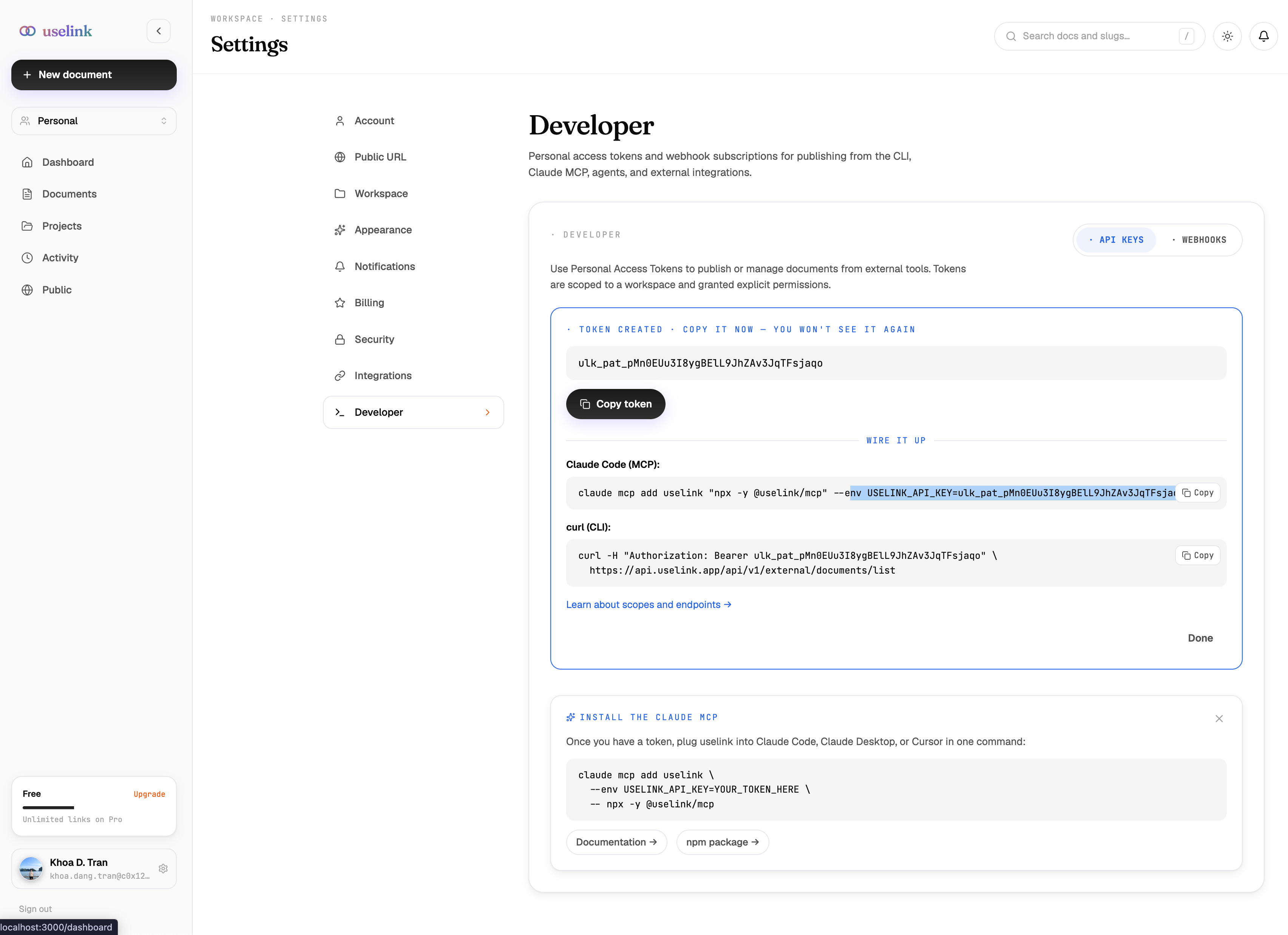
The Developer page surfaces a ready-to-copy install command the moment a token is created — see the screenshot above. Both the claude mcp add snippet and a curl smoke test are pre-filled with your token.
Step 2 — Install the MCP Server
Claude Code
Run this in your terminal (replace the token with yours):
claude mcp add uselink \
  --env USELINK_API_KEY=ulk_pat_your_token_here \
  -- npx -y @uselink/mcp
That’s it. Restart Claude Code — the uselink server should now appear in your MCP server list.
Cursor / Windsurf / Claude Desktop
Edit your MCP config file (location varies by editor — usually ~/.cursor/mcp.json, ~/.codeium/windsurf/mcp_config.json, or ~/Library/Application Support/Claude/claude_desktop_config.json):
{
  "mcpServers": {
    "uselink": {
      "command": "npx",
      "args": ["-y", "@uselink/mcp"],
      "env": {
        "USELINK_API_KEY": "ulk_pat_your_token_here"
      }
    }
  }
}
Save and restart your editor.
Step 3 — Verify the Connection
In your AI client, ask:
“List my Uselink projects.”
If the connection works, the AI will call uselink_list_projects and return your project list. If you get an authentication error, double-check the token and its scopes.
You can also smoke-test with curl using the snippet shown on the Developer page:
curl -H "Authorization: Bearer ulk_pat_your_token_here" \
  https://api.uselink.app/api/v1/external/documents/list
Available Tools
The MCP server exposes ~40 tools. The most common ones:
Documents
uselink_create_document— Create a draft (Markdown or HTML)uselink_update_document— Edit a draftuselink_publish_document— Publish the current draft as a public linkuselink_unpublish_document— Take a published doc offlineuselink_read_document— Read a doc by id or sluguselink_list_documents— List docs in a project/folderuselink_search_documents— Full-text search across your docsuselink_delete_document— Soft-delete a doc
Projects & Folders
uselink_create_project— Create a new projectuselink_list_projects— List projects you can seeuselink_create_folder— Create a folder inside a projectuselink_list_folders— List folders in a projectuselink_move_document— Move a doc between projects/folders
Comments
uselink_list_comments— Read comments on a published docuselink_reply_comment— Post a replyuselink_resolve_comment— Mark a comment thread as resolved
Assets
uselink_upload_asset— Upload an image, SVG, or videouselink_publish_with_assets— Publish a doc and bundle its referenced assets
Common Workflows
1. Publish an architecture note
“Take the contents of
docs/architecture.mdand publish it to my Uselink as ‘API Architecture v2’.”
The AI reads the file, calls uselink_create_document with the Markdown content, then calls uselink_publish_document. You get back a shareable URL.
2. Share a code review report with PMs
“Publish the review summary I just wrote into the Engineering project, folder ‘reviews’, titled ‘Q2 Auth Refactor Review’.”
The AI finds the project and folder, creates the doc inside, and publishes it.
3. Triage comments
“Show me unresolved comments on my last 3 published docs.”
The AI lists recent docs, calls uselink_list_comments on each, filters by status, and reports back.
Troubleshooting
| Symptom | Fix |
|---|---|
Insufficient scopes |
The PAT is missing a scope. Regenerate with the scopes listed above. |
Unauthorized |
Token is wrong or expired. Verify USELINK_API_KEY is set correctly. |
| Tools don’t appear after install | Restart your AI client. MCP servers load at startup. |
| Token change doesn’t take effect | MCP reads USELINK_API_KEY at startup. Restart the client after updating the token. |
npx hangs on first run |
First run downloads the package. Subsequent runs are fast. Allow ~30s. |
Security Notes
- Treat your PAT like a password. Anyone with the token can read and publish on your behalf.
- Use scoped tokens — only grant the scopes you actually need.
- Rotate tokens every 90 days, or immediately if leaked.
- Never commit tokens to git. Use environment variables or a secrets manager.
- Workspace owners can revoke any PAT from the Developer settings page.
Resources
- Uselink: uselink.app
- MCP specification: modelcontextprotocol.io
- Source for
@uselink/mcp: published on npm
Happy publishing.